PDF to SVG Converter
Extract clean, resolution-independent vector graphics from any document. Scale without limits.
Supports PDF
Size up to 100 MB
How to convert PDF to SVG
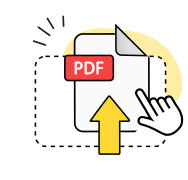
Upload your document
Select your file or drag it into the upload area to begin.
Convert to vector
Our tool extracts vector elements and produces a clean SVG file automatically.
Download the SVG
Save the result to your device, ready to edit, embed, or scale.
Explore more OnlyDoc tools


 Expert conversion tools
 Easy e-signatureAI-powered tools
Turn document text into other languages in just a few seconds.

Reduce file size while keeping text and visuals clear.

Recognize text to make scanned files searchable.
Compress file size to 100KB keeping text and visuals clear.
Why convert PDF to SVG with our tool
Instant vector output
Upload your document and receive an SVG file within seconds. No queue and no delays.
Encrypted and secure

Your connection is protected throughout. Our platform is GDPR-compliant and verified by Google Safe Browsing.
Crisp at any scale
SVG output uses vector paths, so graphics stay sharp whether displayed on a phone screen or a billboard.
Every device and OS

Run the conversion from any device and operating system. No software to install and no plugins needed.
True vector fidelity

Shapes, paths, and text from the source are carried over as editable vector elements in the output.
Free of charge

Convert PDFs to SVG files free of charge. No account, no subscription, no usage caps at any point.
Convert PDF to SVG free of charge
Frequently asked questions
What is SVG?
SVG stands for Scalable Vector Graphics, an XML-based image format maintained by the World Wide Web Consortium (W3C). Unlike raster formats such as JPG or PNG, which store images as grids of pixels, SVG describes shapes, paths, and text mathematically. This means an SVG file can be scaled to any size without losing clarity, from a tiny icon to a building-wide banner. This file format is natively supported by all modern browsers and is the standard for web graphics, logos, icons, and interactive data visualisations. Because SVG is plain XML, it can be styled with CSS, animated with JavaScript, and indexed by search engines.
Why convert a document to SVG?
The Portable Document Format is designed for fixed-layout viewing and printing, but it is not ideal for editing individual graphic elements. When you need to modify a logo, resize a chart, or reuse a diagram on the web, an SVG file is far more practical. SVG paths remain editable in tools like Adobe Illustrator, Inkscape, and Figma, which makes the format the standard choice for designers. PDF to SVG conversion extracts the vector data and discards the fixed-page wrapper, giving you resolution-independent output ready for web embedding, responsive design, or further creative work.
Will colours and shapes be preserved?
Yes. Our converter reads the vector paths, fills, strokes, and colour values defined in the source and writes them into the SVG output faithfully. Gradients, transparency, and layered elements are handled as well. The result is a close representation of the original page. Purely raster content embedded in the source, such as photographs, is converted as a referenced image element within the SVG rather than as vector paths. For best results when converting PDF to SVG, start with documents that contain true vector artwork rather than scanned bitmaps.
Can I convert pages with QR codes to SVG?
Yes. QR codes in a document are typically stored as vector paths, which means they transfer cleanly into the SVG output. The shapes and proportions are preserved, so the code remains scannable after conversion. If the QR code was embedded as a raster image rather than vector art, it will appear in the SVG as a bitmap element at the original resolution. For maximum compatibility, ensure the source uses vector-based QR code generation. You can convert PDF to SVG online and check the output in any browser to verify the code scans correctly.
Can I edit the SVG after conversion?
Yes. SVG is an open format supported by virtually every vector graphics editor, including Adobe Illustrator, Inkscape, Figma, and CorelDRAW. After you turn PDF into SVG using our tool, you can open the file, modify colours, reshape paths, add or remove elements, and re-export for web or print.
Can I convert PDF to SVG for Cricut?
Yes. Many Cricut users need vector files to create precise cuts, and SVG is the native format Cricut Design Space accepts for custom designs. When you convert a PDF to SVG, text and shapes are translated into vector paths that can be resized and manipulated without quality loss. For best results, start with a PDF that contains actual vector content — such as a logo or illustration — rather than a scanned raster image, since raster content converts to traced outlines that may not cut as cleanly.