 Published Jun 16, 2026
  7 min read
  50 views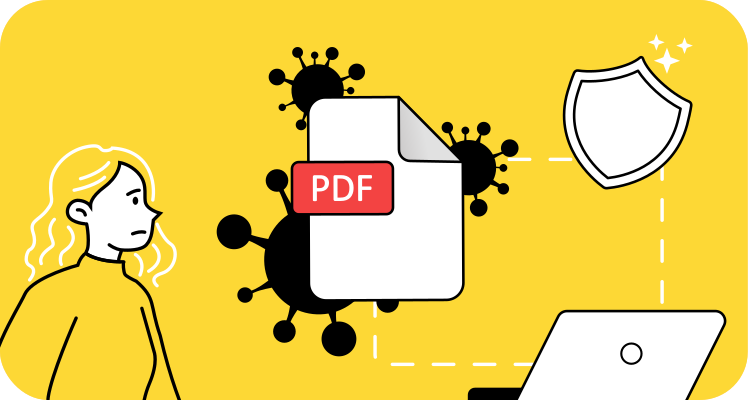
When an unexpected invoice or resume lands in your inbox as a PDF attachment, the question shifts from abstract concern to immediate threat assessment. You need a clear answer and practical strategy without vague warnings to "be careful." Understanding how malicious PDF files operate protects your sensitive information while maintaining access to essential documents.
How can PDFs contain viruses?
Yes, PDFs can harbor viruses. A PDF file is not a static image frozen on your screen; it's a sophisticated container capable of running executable code. The file format supports JavaScript for interactive features, accepts embedded binary files as attachments, and permits system-level commands through launch actions. These capabilities make PDF documents functional and versatile while creating pathways for attackers to deliver malware.
The programmable nature means a malicious actor can craft a document that appears legitimate while concealing threats beneath the surface. When opened in vulnerable environments, these infected PDF files can execute scripts, install trojans, or harvest login credentials without requiring obvious user interaction. Understanding the specific methods attackers employ helps you recognize danger before it reaches your device.
How malware hides inside a PDF: 4 common methods
Cybercriminals exploit PDF complexity through four primary attack vectors. Each method leverages different technical features to deliver payloads, steal sensitive information, or compromise systems. Recognizing these tactics demystifies the threat and empowers you to identify suspicious documents.
Malicious JavaScript
Auto-run scripts embedded within a PDF execute the moment you open the file. This JavaScript code can trigger download dialogs that prompt installation of malware, exploit known vulnerabilities in your PDF reader software, or redirect your browser to phishing sites. The programming language runs silently in the background while you see a normal document on screen as malicious code attempts to compromise your system.
Because JavaScript within a PDF document operates without visible cues, attackers favor this method for initial access. The script can probe for security weaknesses, map your network configuration, or establish connections to command-and-control servers. Disabling JavaScript in desktop PDF readers reduces this risk but also breaks legitimate interactive features like forms.
Embedded payloads
Attackers hide executable files inside the PDF structure as attachments. These malicious payloads sit dormant until you click an embedded button or link that launches the hidden file. Social engineering tactics disguise the action as something benign, such as "Click here to view full resolution" or "Download invoice details."
The victim perceives they're simply interacting with document content, but clicking activates the threat. Once executed, trojans install ransomware, spyware, or remote access tools. File masquerading techniques name executables to appear legitimate, exploiting Windows' default behavior of hiding known file extensions so users only see what looks like a standard document.
System commands
PDF specifications permit launch actions that can open your device's command prompt or terminal directly. Attackers exploit this capability to run code at the operating system level, bypassing traditional document security boundaries. A malicious PDF containing system commands can modify registry settings, disable antivirus software, or install persistent backdoors.
This method grants unauthorized access to core system functions. Because the commands execute through the PDF reader rather than requiring a separate download, many users don't recognize they've triggered a cyberattack. Desktop applications that process files locally are particularly vulnerable to this exploit vector.
Phishing links
Interactive PDF forms can mimic legitimate login pages with pixel-perfect visual accuracy. Attackers replicate bank interfaces, corporate portals, or social media sign-ins within the PDF document, then harvest credentials when victims type their username and password. The phishing page may even submit data to the real website after capturing it, so users don't realize their information was stolen.
Branding mimicry creates false confidence by copying logos, color schemes, and layout from trusted institutions. Clicking a call-to-action button within the document might redirect to an external site designed to spread malware or conduct further credential theft. These phishing attacks target sensitive data rather than infecting your device, but the damage to data security can be equally severe.