Sending a contract to a client or sharing pricing information raises one crucial question: how do you stop recipients from altering your carefully prepared document? Understanding how to make a PDF uneditable protects your content from both accidental changes and intentional tampering. The challenge is choosing the right protection level for your specific security needs.
Why make a PDF non-editable? Preservation vs. protection
When you lock a PDF from editing, you're addressing one of two distinct goals. Preservation prevents well-meaning collaborators from accidentally modifying your document during review cycles — perfect for draft contracts or shared templates where you want feedback without structural changes.
Protection takes security further by preventing intentional tampering with final documents. Legal agreements, official invoices, job resumes, and confidential price sheets all require genuine tamper resistance. Someone determined to alter a preserved document might succeed; a properly protected PDF resists even deliberate manipulation.
The spectrum runs from basic file permissions (mild deterrent) to full flattening (permanent conversion). Each method offers different trade-offs between convenience and security. Your document's sensitivity should guide your choice: personal workflow files need less protection than documents carrying legal weight or proprietary business data.
Method 1: Flattening a PDF file to make it read-only
This is the most reliable way to make PDFs non-editable permanently. Flattening converts your document's text and vector elements into pure image data, then re-encodes that visual information as a PDF file. To software reading the result, your carefully formatted text is no longer selectable code — it's a photograph.
The brilliance lies in permanence. Text converted into pixels cannot be highlighted, copied, or modified by editors. Form fields vanish. Interactive elements freeze. What you create is what everyone sees, forever. This makes flattening ideal when you need maximum security: final contract copies, sensitive financial reports, or any document where unauthorized changes could cause legal or business harm.
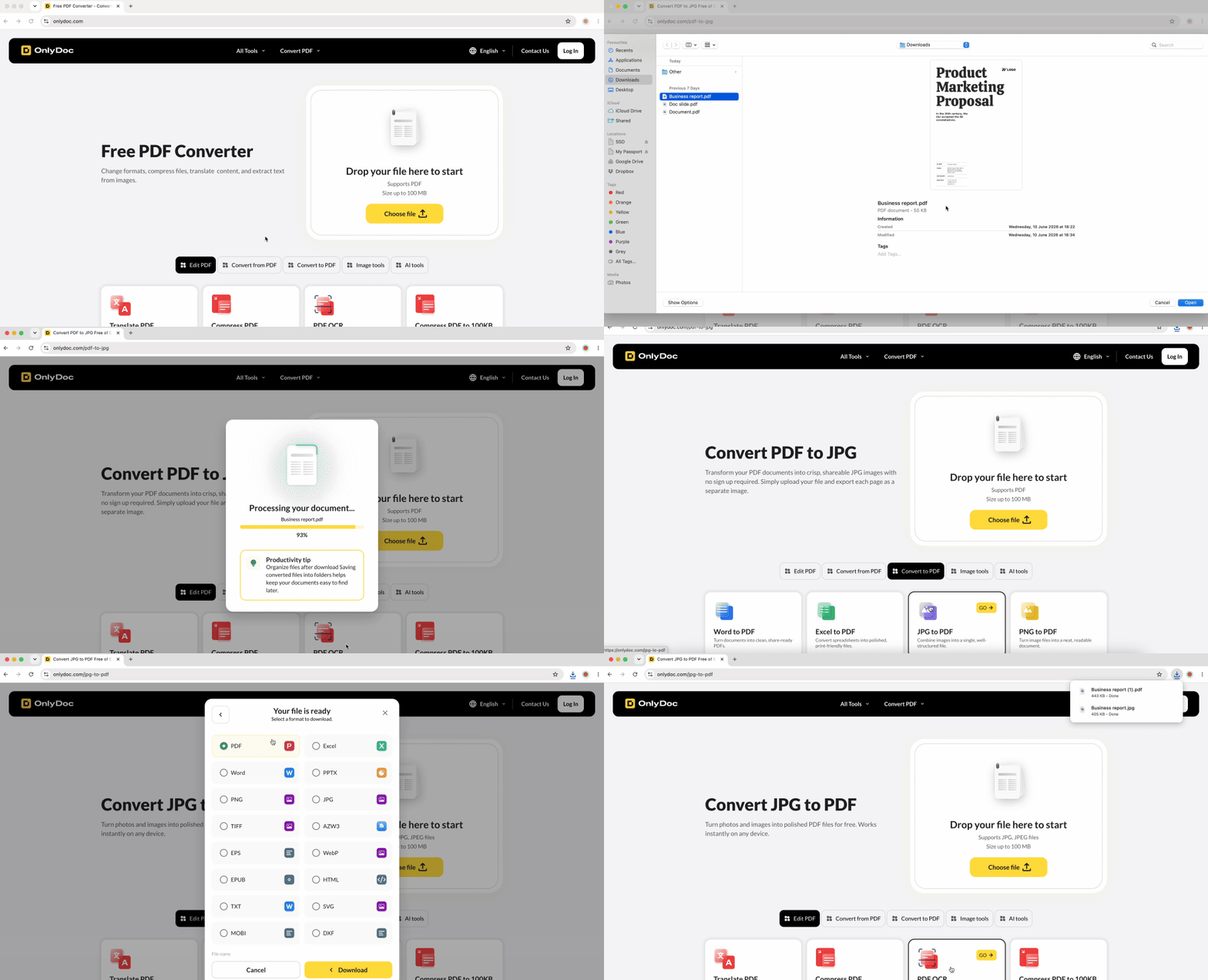
Our PDF to JPG Converter enables this protection. The process is straightforward:
- Upload your PDF to convert it into JPG format
- Download the resulting image files
- Upload those JPG images back through a JPG-to-PDF converter
- Save your new, completely uneditable PDF
The output looks visually close to the original but contains only pixel data. Even a sophisticated PDF editor sees nothing to edit — just a flat image layer. What was once an editable PDF is now a photograph. Quality remains high when using appropriate resolution settings, and the security gain is substantial.
Method 2: Save a PDF as read-only using your OS
Operating systems offer built-in file attributes that can make PDFs read-only on your local machine. These settings work well for personal workflow organization but come with critical limitations you must understand before relying on them.
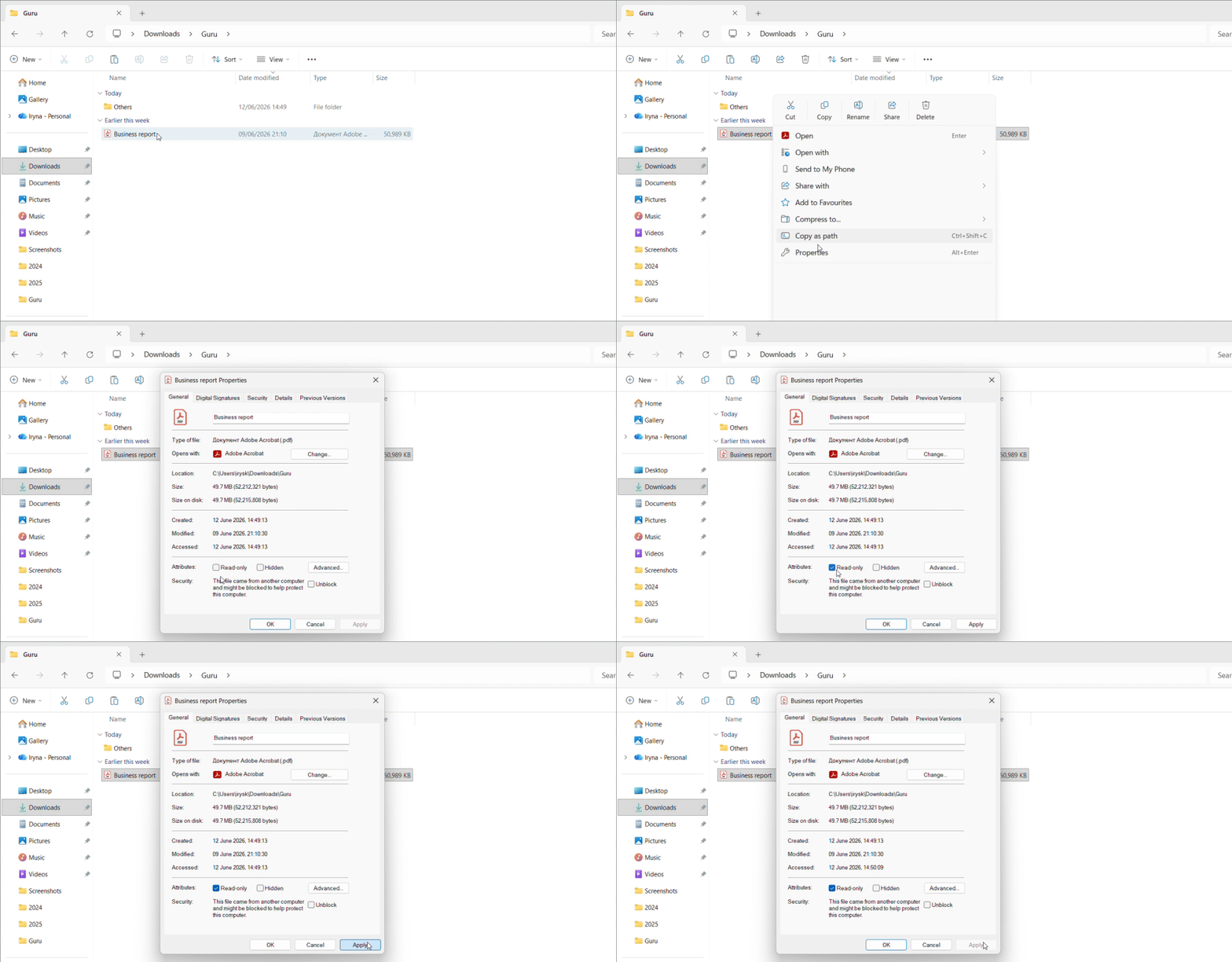
Windows read-only setting
- Right-click your PDF file and open the document properties
- Under the General tab, check the "Read-only" attribute checkbox
- Click Apply
Windows will now prevent editing applications from modifying that specific file on your computer.
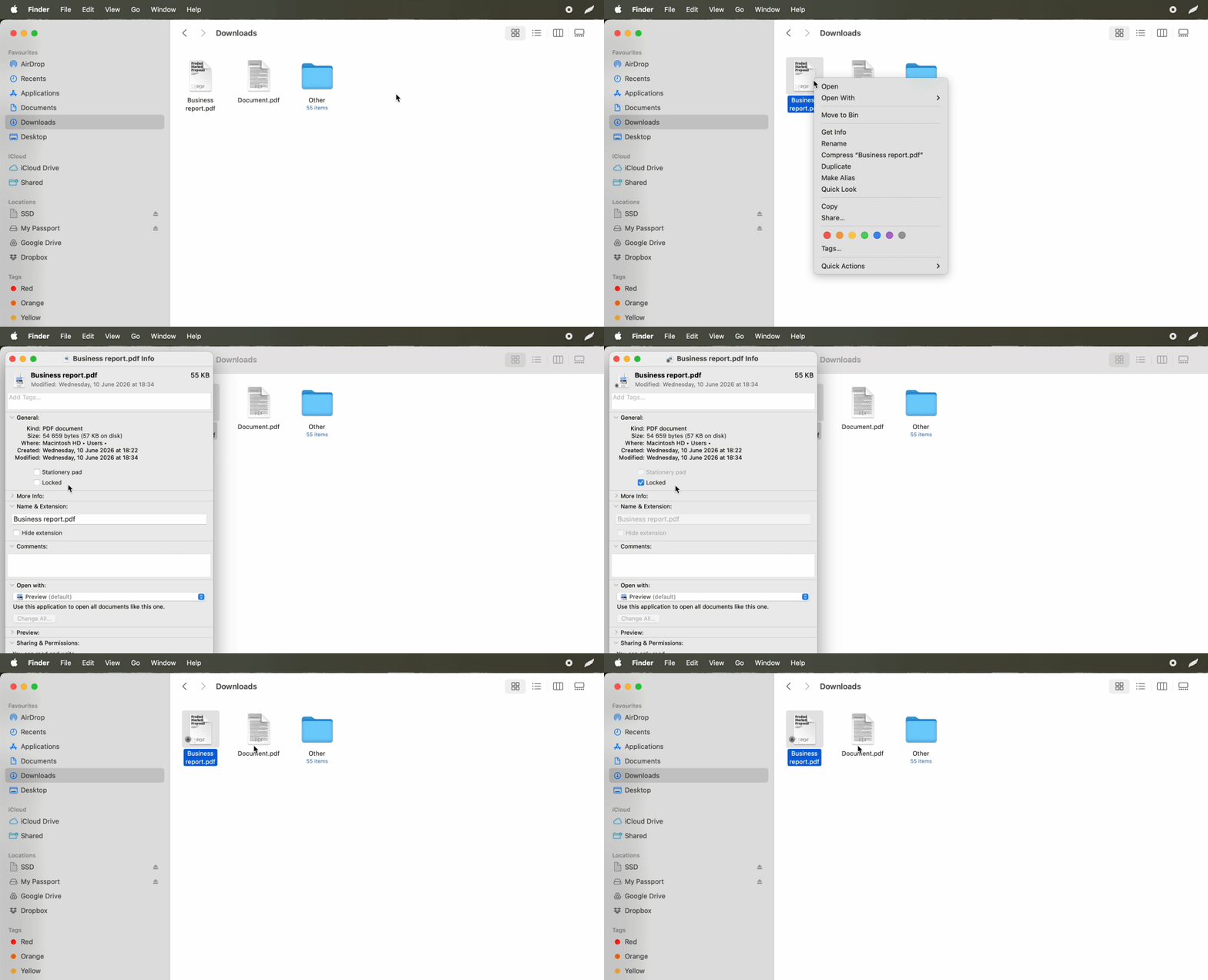
Mac permissions and lock
- Right-click the PDF and choose Get Info
- Under Sharing & Permissions, set your permission level to "Read only"
- Check the "Locked" checkbox near the top of the Info window for additional local protection
The critical warning: These attributes protect the file only on your own device. When you email a PDF or upload it to cloud storage, these read-only restrictions often disappear entirely. Recipients typically receive a fully editable copy regardless of your local settings. File permissions are metadata that don't reliably survive file transfer across different systems and platforms.
Use this method when preventing accidental self-edits during your own workflow, not when distributing documents externally. It's appropriate for organizing your archive of finalized documents but wholly inadequate for client-facing materials or anything leaving your control.
How to edit a read-only PDF file
The reverse scenario frustrates users regularly: receiving a PDF someone else locked when you have legitimate reasons to modify it. Perhaps a client sent you a form with editing restrictions, or you need to update a template with permissions you should have.
Our Unlock PDF tool removes these restrictions quickly. Upload the locked file, and the tool strips permission flags that block editing, copying, or printing. This addresses password-protected permissions rather than full encryption. If the creator used a permissions password to restrict editing, the unlock tool removes those flags. But if they chose to encrypt the file with a strong password to open the document, that's a different layer of password protection requiring the original credentials.
When colleagues share restricted documents or you inherit protected templates from previous projects, unlocking becomes necessary for productive work. The tool restores your ability to make non-editable PDF documents into workable files. Remember this distinction: flattened PDFs cannot be unlocked because their text genuinely no longer exists as editable code.
How to protect your PDF document from AI scrapers
Creating a solution to make PDFs uneditable in 2025 addresses threats beyond human tampering. Automated systems now harvest data from PDFs at scale — pricing information, contact details, proprietary research findings, and competitive intelligence all flow into AI training datasets without your knowledge.
Code-level vs. visual-level security
Two security layers exist in PDF protection. Code-level security uses passwords and permissions to restrict access, but the underlying text structure remains intact. Specialized extraction tools can often read this code even when permissions forbid copying. The text exists as selectable data waiting to be harvested.
Visual-level security through flattening eliminates that extractable code entirely. When AI bots encounter a flattened PDF, they see only pixels — a "dark room" requiring optical character recognition to interpret. OCR adds significant processing overhead and reduces accuracy, making mass scraping of flattened documents far less economical.
Why flattening beats passwords for sensitive documents
This distinction matters for business-sensitive documents. Price lists, proprietary methodology reports, confidential client data, and internal research all contain information competitors would value. A password-protected PDF file still leaks its text to sufficiently motivated scrapers; a flattened file forces manual effort to extract anything meaningful.
Upload your sensitive document to an online service like OnlyDoc, flatten it through image conversion, and distribute the result knowing automated harvesting faces genuine obstacles. Consider flattening whenever your PDF contains information that provides competitive advantage or requires confidentiality beyond basic access control.