Method 2: How to embed a PDF in Google Docs as an image using Google Drawings
Most users don't realize Google Docs includes a built-in graphic design tool that functions as the only native way to annotate PDF screenshots without expensive desktop software or other online platforms. This method excels when you need to add arrows, highlights, or text boxes directly onto a PDF image before embedding it in your document.
The Google Drawings canvas acts as a container where you can import PDF into Google Doc as an image, overlay annotations, then insert the entire composition back into your Doc. The result remains editable—you can double-click the inserted drawing anytime to modify annotations.
Using Google Drawings as a PDF container
This workflow turns Google Drawings into a PDF editor for annotation purposes:
- Open your Google Doc and position your cursor where you want the annotated PDF to appear
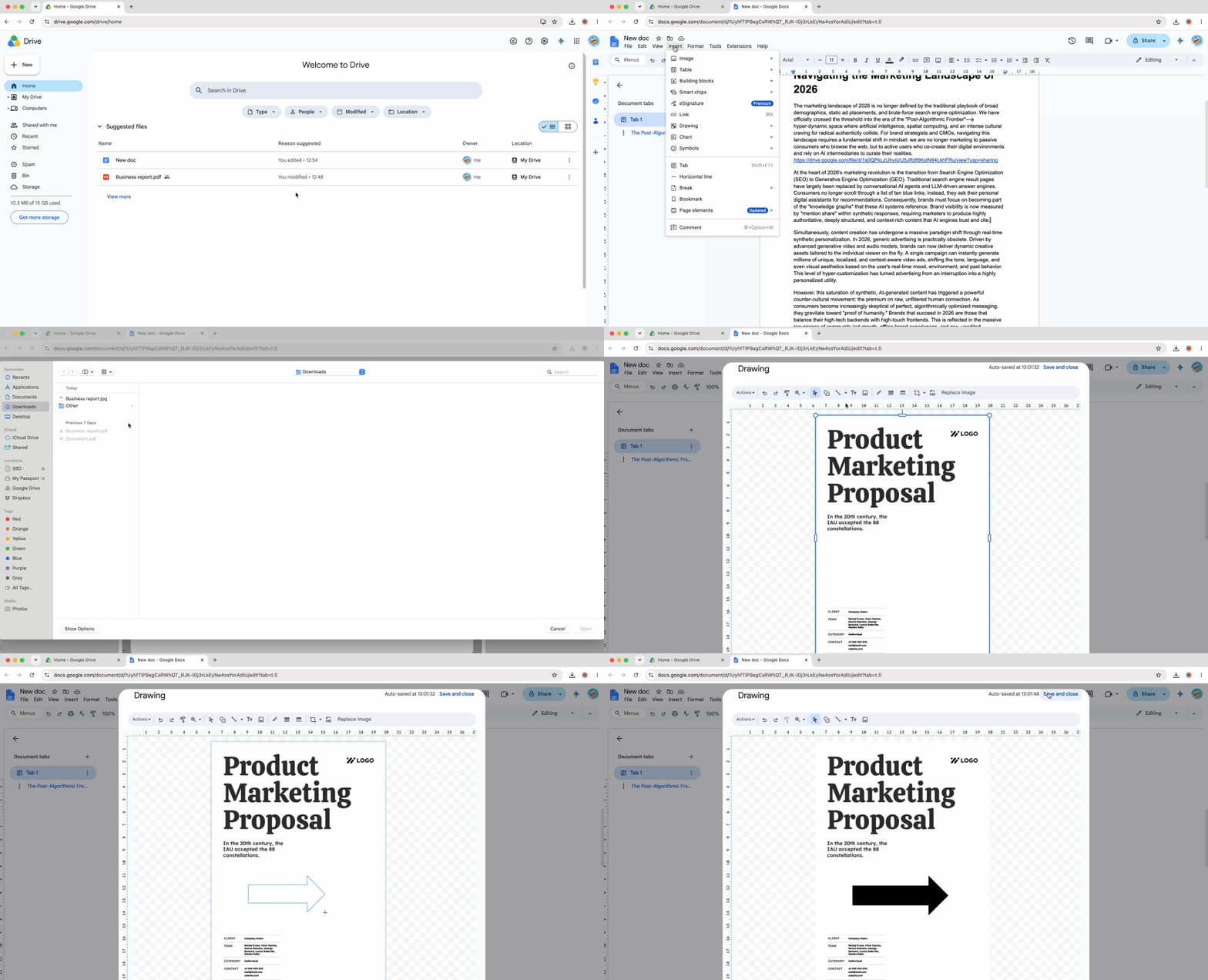
- Click "Insert" in the top menu, then select "Drawing" > "New"
- In the Drawing canvas window that opens, click the image icon in the toolbar (or press Ctrl+Alt+I on Windows, Cmd+Option+I on Mac)
- Upload your PDF screenshot—click "Upload from computer" and select the PDF image file (Note: You must first convert your PDF to an image format like JPG or PNG using a screenshot tool or PDF editor; Google Drawings doesn't directly import PDF files)
- Once the image appears in the canvas, use the toolbar to add shapes (arrows, rectangles, circles), text boxes, or highlights
- Position your annotations precisely by clicking and dragging elements
- When finished, click "Save and Close" in the top-right corner
The annotated PDF embeds in your Google Doc as a single unified image. To edit annotations later, double-click the inserted drawing to reopen the canvas. This method works best when you need to attach PDF to Google Doc with visual markup intact—perfect for document review, instructional materials, or highlighted research citations.
Method 3: Insert PDF as an image: The screenshot method for single-page PDFs
When you need to add PDF to Google Docs quickly and the PDF contains just one relevant page, desktop screenshots provide the fastest path. This method captures a specific portion of your screen as an image, which you can paste directly into your document.
The approach works best for visual references where you don't need the entire multi-page PDF—just a specific chart, diagram, form section, or text excerpt.
Using Windows/Mac snipping shortcuts
Desktop operating systems include built-in screenshot tools with keyboard shortcuts:
Windows (Snipping Tool):
- Press Win+Shift+S to activate the screen overlay
- Your cursor becomes a crosshair
- Click and drag to select the PDF area you want to capture
- Release the mouse—the screenshot copies to your clipboard
- Switch to your Google Doc and press Ctrl+V to paste
Mac (Screenshot utility):
- Press Cmd+Shift+4 to activate screenshot mode
- Your cursor becomes a crosshair
- Click and drag to select the PDF region
- Release the mouse—the image saves to your desktop by default
- Open the file and copy it (Cmd+C), then paste into your Google Doc (Cmd+V)
Pro tip: On Mac, add Ctrl to the shortcut (Ctrl+Cmd+Shift+4) to copy the screenshot directly to clipboard instead of saving a file, matching the Windows workflow.
This method lets you insert PDF to Google Doc without uploading anything to Drive, making it ideal for quick internal documents where you control the source PDF and don't need dynamic updates.
Image alignment & text wrapping
By default, Google Docs treats pasted images as inline elements that flow with surrounding text. This causes layout problems—if you add text above an embedded PDF screenshot later, the image shifts down the page unpredictably.
The solution is Fixed Position mode:
- Click the inserted PDF screenshot once to select it
- Click the three-dot menu icon that appears below the image
- Select "All image options" to open the side panel
- In the side panel, locate the "Position" dropdown
- Change from "Inline with text" to "Fix position on page"
- Optionally adjust "Text wrapping" to control how document text flows around the image (choose "Wrap text" for text to fill space beside the image, or "Break text" to keep text above and below only)
Fixed Position locks the PDF image to a specific location on the page. You can still drag it to reposition manually, but typing new content won't cause unexpected shifts. This setting is essential when adding PDF to Google Doc as a formatted visual element rather than an inline screenshot.
Method 4: Convert PDF to editable text in Google Docs with OCR
This method differs from the previous three—instead of embedding a PDF visually, it converts PDF content into fully editable Google Doc text. The conversion uses optical character recognition (OCR) to detect text within the PDF file and recreate it as a native Doc format.
Use this approach when you need to copy paragraphs from research papers, edit form text, or repurpose content from a PDF document. Don't use this method if you want to preserve the PDF's original visual layout—OCR conversion reformats everything.
Converting PDF to editable text via Google Drive
Google Drive's built-in OCR processes PDFs automatically when you open them with Google Docs:
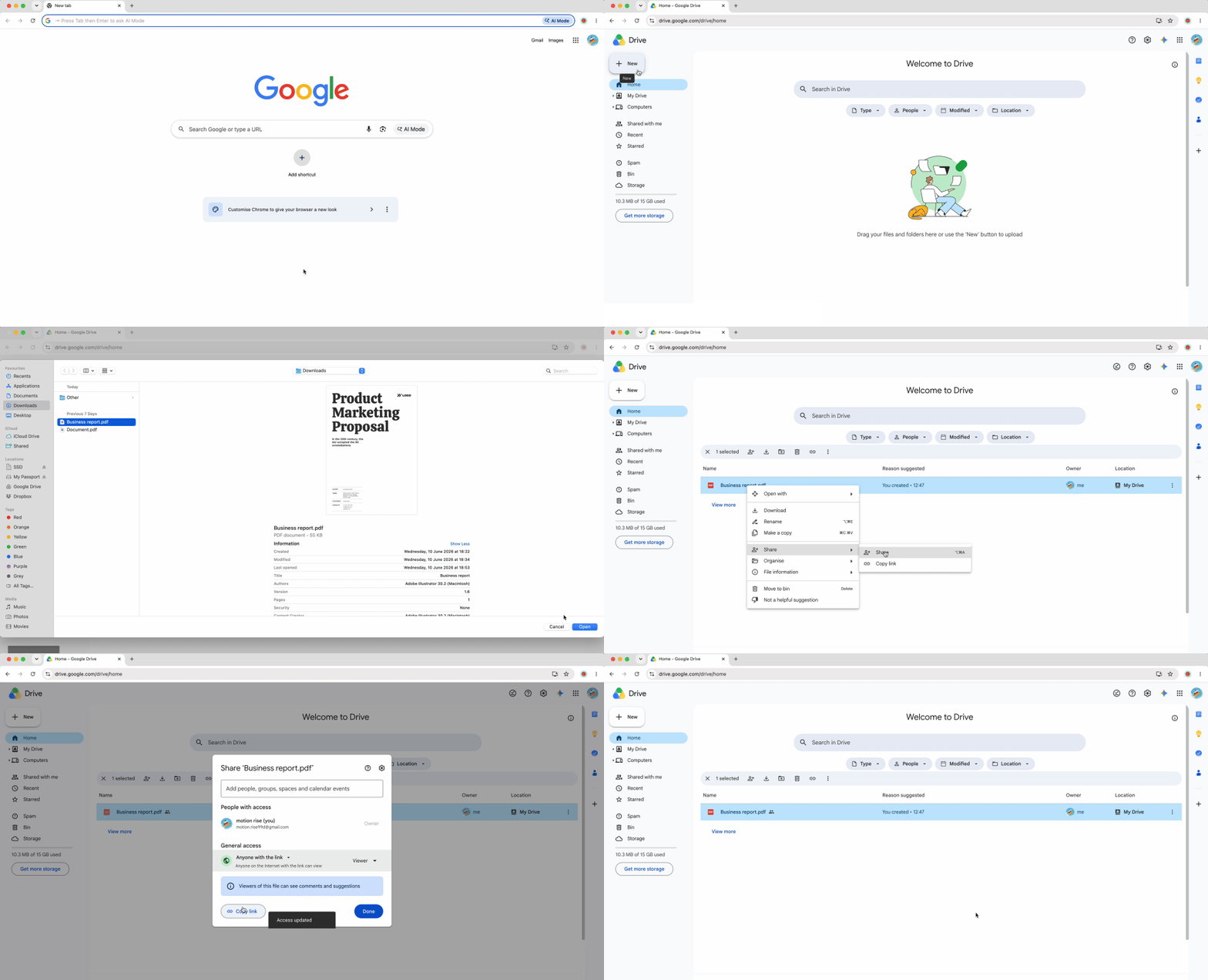
- Upload your PDF to Google Drive (drag and drop into drive.google.com)
- Right-click the PDF file in your Drive file list
- Hover over "Open with" in the context menu
- Select "Google Docs" from the submenu
A new Google Doc opens containing the extracted text. The OCR engine attempts to preserve format (headings, lists, bold text), but accuracy depends on PDF quality. Typed PDFs convert with high accuracy, while scanned documents or image-based PDFs may produce varying results with occasional character recognition errors.
Your original PDF file remains unchanged in Drive—this process creates a separate editable copy. The converted Doc isn't dynamically linked to the source PDF, so updates to one don't affect the other.
PDF-to-Doc conversion often introduces artifacts: gray backgrounds, inconsistent line spacing, broken paragraph breaks, and mismatched fonts. Google Docs tries to replicate the PDF's visual styling, which creates messy formatting in editable text.
The fastest fix is the Clear Formatting command:
- In the converted Google Doc, press Ctrl+A (Windows) or Cmd+A (Mac) to select all text
- Press Ctrl+\ (Windows) or Cmd+\ (Mac) to clear all formatting
- Alternatively, click "Format" in the menu bar, then select "Clear formatting"
This command strips away background colors, resets fonts to the default, removes inconsistent spacing, and normalizes line breaks. You're left with clean, unformatted text that you can manually restyle with headings, bold, lists, and other formatting as needed.
After clearing formatting, manually reapply document structure—mark headings, restore bullet points, and adjust spacing. This extra step is worth the effort when you need to edit PDF text rather than simply reference it visually.
Use Google Docs' live link strategy to keep PDF content updated
Desktop browsers unlock a workflow advantage that mobile apps can't match: the Side Panel preview. When you how to insert PDF into Google Doc using the Smart Chip method and then click that chip, Chrome opens a split-screen view that lets you read the PDF and type in your document simultaneously on the same screen.
Here's how to use it:
- Create a Smart Chip link to your PDF (follow Method 1 instructions)
- Click the Smart Chip in your Google Doc
- Instead of opening in a new tab, Chrome displays a side panel on the right side of your browser window
- The PDF preview appears in the panel—scroll through it while your Doc remains visible on the left
- Type notes, references, or quotes in your Doc while reading the source PDF without switching tabs
This Side Panel feature is exclusive to Chrome on desktop (some Chromium-based browsers like Edge may support it as well). The workflow dramatically improves efficiency for research-heavy tasks—you no longer need to toggle between tabs or use a second monitor to view source materials while writing.
The panel preview is read-only. To edit the PDF or change share permissions, click "Open in Drive" at the top of the panel.
PDF to Google Docs: Method comparison table
| Method | Best For... |
|---|
| Smart Chip | Professional reports, formal documents, maintaining clean appearance—ideal when readers need quick PDF access without visual clutter |
| Google Drawing | Annotating/marking up PDFs, adding arrows and highlights, visual feedback on drafts or instructional materials |
| Screenshot | Quick visual references, single-page snippets, informal documents where you control the source file |
| OCR Conversion | Copying text from PDFs, editing content, repurposing research materials—prioritizes editability over visual fidelity |
Choose Smart Chips when presentation matters, Google Drawings when you need annotation tools, screenshots when speed trumps polish, and OCR conversion when text extraction is the goal. Each method serves distinct use cases in the desktop Google Docs workflow, and understanding when to apply each approach elevates document quality and saves time. For creating PDFs from other formats to use with these methods, OnlyDoc offers tools like Word to PDF conversion to prepare your documents before embedding them in Google Docs.

 Published Jun 16, 2026
  11 min read
  60 views