Method 2: Save a copy of a Word document in-app (Avoid the AutoSave trap)
When you already have a file open in Word or need to work within the application, understanding the correct duplication sequence becomes critical. This is where most users encounter the AutoSave disaster — and where careful execution matters most.
"Save a Copy" vs. "Save As"
Microsoft 365 changed how duplication works for cloud-connected Word documents. In traditional desktop versions of Word, Save As created copies by closing the original file and opening the duplicate for editing. With OneDrive and SharePoint integration, that command often disappears from the file menu entirely.
The replacement is File → Save a Copy (or in some versions, File → Save As → Save a Copy). This command creates a separate file in the background while keeping your original document open in the current window. The distinction prevents AutoSave from creating sync conflicts between two versions of the same file.
If your file menu shows both options, use Save a Copy for cloud-stored files. It's the safer choice that respects AutoSave's behavior without forcing you to close your work mid-task.
The golden rule
Here is the single most important instruction when learning how to make a copy of a Microsoft Word document while AutoSave is enabled:
SAVE THE COPY BEFORE YOU MAKE ANY EDITS.
If you open a document, start typing or formatting, and then try to save a duplicate, AutoSave has already committed your changes to the original file. Those edits are permanent the moment you make them — typically within two to five seconds.
- Open the file you want to copy.
- Immediately go to File → Save a Copy before making any changes.
- Assign a new name to the duplicate.
- Begin editing only after the copy operation completes.
Common mistake: users assume they can experiment with changes, decide they want a copy, and use Save a Copy to preserve both versions. AutoSave beats them to it, updating the original in real time. Follow the sequence religiously when working with cloud storage.
"Open as Copy" (the Windows secret)
- Go to File → Open → Browse and navigate to your document's location.
- Click the small dropdown arrow next to the Open button (instead of clicking the button itself).
- Select Open as Copy from the menu.
Word creates a duplicate named "[Original Name] (2)" and opens that file while leaving the original untouched. Because Word treats this as a brand-new document from the moment it loads, AutoSave applies only to the copy — not to the source file. This method works perfectly for creating working drafts from master templates or experimenting with alternative versions.
Method 3: Copy a document in Word Online, OneDrive & SharePoint
Many professionals work exclusively in browsers through Word Online, never launching the desktop application. Understanding browser-based duplication prevents the need to download files, duplicate them locally, and re-upload copies — a workflow that wastes time and creates version confusion.
Copying in OneDrive Web
- Log into OneDrive and navigate to the folder containing your document.
- Click the checkbox next to the filename to select it (do not click the filename itself, which opens the file).
- In the command bar at the top of the page, click Copy to (not Move to).
- Choose any folder within your OneDrive or select a different folder within the same directory.
- Rename the duplicate during this process if desired.
Copy to leaves the original file in its current location while creating an independent second version — Move to relocates the original, which is not duplication. This method keeps everything within the Microsoft ecosystem, making it ideal for maintaining cloud-based workflows without switching to desktop software.
Word Online "Download a Copy"
- Open your document in Word Online through your browser.
- Go to File → Save As → Download a Copy.
- Find the downloaded .docx file in your computer's default download folder.
This command downloads a .docx file to your computer. The downloaded file has no connection to the cloud version — you've created an independent document that won't sync changes back to OneDrive. Edit the downloaded copy freely, save it to your desktop, or upload it to a different cloud service without affecting the original.
Use this method when collaborating across platforms (such as sharing files with colleagues who use Google Drive) or when you need offline access to a document stored on your work's SharePoint site.
Method 4: Make a copy from Version History in Microsoft Word
This method addresses users who already made the mistake — you edited a file, AutoSave committed the changes, and now your original version is gone. Microsoft 365's Version History feature becomes your recovery tool when standard duplication fails.
How to "save out" an older version
- Immediately go to File → Info → Version History.
- Review the panel on the right side showing timestamped versions such as "2 hours ago" or "Yesterday 3:47 PM."
- Click any version to preview its content in a read-only window.
- Once you identify the version you need, click Restore at the top of the preview window.
- Alternatively, open the old version and immediately use File → Save a Copy to create a separate file with a distinct name.
Word creates a new copy with the old content and saves it as the current version — your "mistake" version doesn't disappear but moves into the version history itself.
Version History only works if AutoSave was enabled when you created the file — the same feature that caused the problem provides the solution. Microsoft typically retains versions for 30 days, giving you a generous window to recover accidentally modified documents.
Method 5: How to copy a Word document on iPhone and Android devices
Duplication on smartphones and tablets requires different steps than desktop workflows. Even if you primarily work on a computer, understanding mobile methods helps when you need to create copies on the go or collaborate across devices.
iOS (iPhone/iPad)
- Open the Word app and navigate to the Files view where your documents appear as a list.
- Tap the three dots (•••) next to the filename you want to duplicate.
- Select Duplicate from the menu that appears.
- Tap the new file to rename it immediately or long-press to move it into a different folder.
Word creates a copy with " copy" appended to the filename and places it in the same OneDrive folder as the original. This method works for any document stored in OneDrive — local files stored directly on your iPhone require uploading to cloud storage first.
Android
- In the Word app on Android devices, long-press the document you want to duplicate in your file list.
- Tap Make a Copy or the share icon depending on your Word app version.
- Rename it through the context menu by tapping the three dots next to the new file, or move it to organize your workspace.
The duplicate appears in the same folder with a modified filename. Like iOS, Android's Word app requires documents to be stored in OneDrive or another connected cloud service for duplication to work.
Sending a copy
- Tap the Share icon while viewing a document.
- Select Send a Copy.
- Choose email as the destination and send the document to yourself as an attachment.
- Save the emailed file to Google Drive, Dropbox, or download it directly to your device.
This creates a truly independent copy outside the Microsoft ecosystem. Use this method when you need to collaborate across platforms or when you want to duplicate a word document into a different cloud service for backup purposes.
When you duplicate files through any method — folder-level copy, Save a Copy, or mobile duplication — the new document inherits invisible metadata from the original. This hidden information includes author names, total editing time accumulated across all sessions, previous editor information, document properties, and most critically, comments and tracked changes you thought were deleted.
Professional document hygiene requires stripping this metadata before sharing copies externally. Clients, prospects, or collaborators don't need to see how long you spent drafting a proposal or which internal team members reviewed the content. More seriously, hidden comments may contain confidential notes never intended for outside eyes.
The Document Inspector solution
- After duplicating your document using any method above, go to File → Info → Check for Issues → Inspect Document.
- Review each category Word reports: Comments, Revisions, Versions, Annotations, Document Properties and Personal Information, Headers/Footers/Watermarks, Custom XML Data, and Hidden Text.
- Click Remove All next to any category you want to clean.
For external-facing Word documents, always remove:
- Comments, Revisions, Versions, and Annotations — internal review content
- Document Properties and Personal Information — author names, company information, editing time
- Hidden Text — content formatted as invisible but still present in the file
Tracked changes deserve special attention. If you used Word's Track Changes feature during drafting, simply accepting or rejecting changes doesn't remove them from the file's metadata. Document Inspector finds and purges the entire change history, leaving only the final text.
For secure document sharing and additional file management, visit OnlyDoc for conversion and formatting tools — including the ability to convert Word documents to PDF — that maintain professional standards across workflows.
Run Document Inspector on every copy you create for:
- Client-facing proposals or contracts (hide internal review comments)
- External presentations or reports (remove company template information)
- Submitted applications or RFPs (strip editing time that reveals workflow)
- Public-facing documents or website downloads (eliminate personal information)
- Legal documents shared with opposing counsel (ensure no privileged notes remain visible)
Execute the inspection after making your copy, not on the original file. Keep your master documents with their full metadata and change history intact for your records; clean only the copies that leave your control.
5 ways to make a copy of Word documents: Comparison table
| Situation | Best Method |
|---|
| Quick copy before opening | File Explorer / Finder (Method 1) |
| Creating a reusable template | "Stationery Pad" trick (Mac) or "Open as Copy" (Windows) |
| File already open in Word | "Save a Copy" command (Method 2) |
| Working in browser only | OneDrive "Copy to" or "Download a Copy" (Method 3) |
| Original file was overwritten | Version History recovery (Method 4) |
| On mobile device | App duplicate or "Send a Copy" (Method 5) |
| Removing metadata before sharing | Document Inspector + any method |
FAQ
Can I duplicate a Word document without opening it?
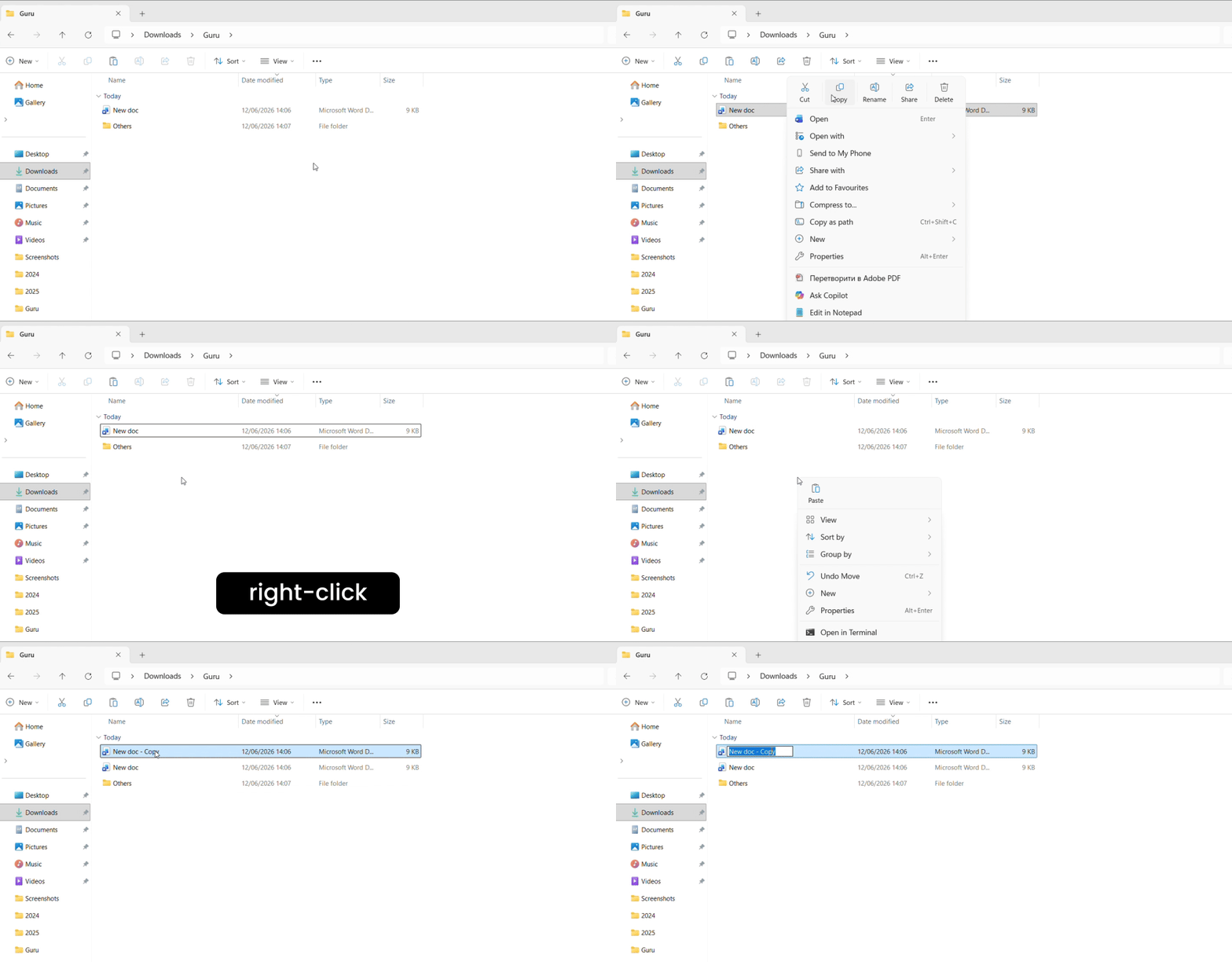
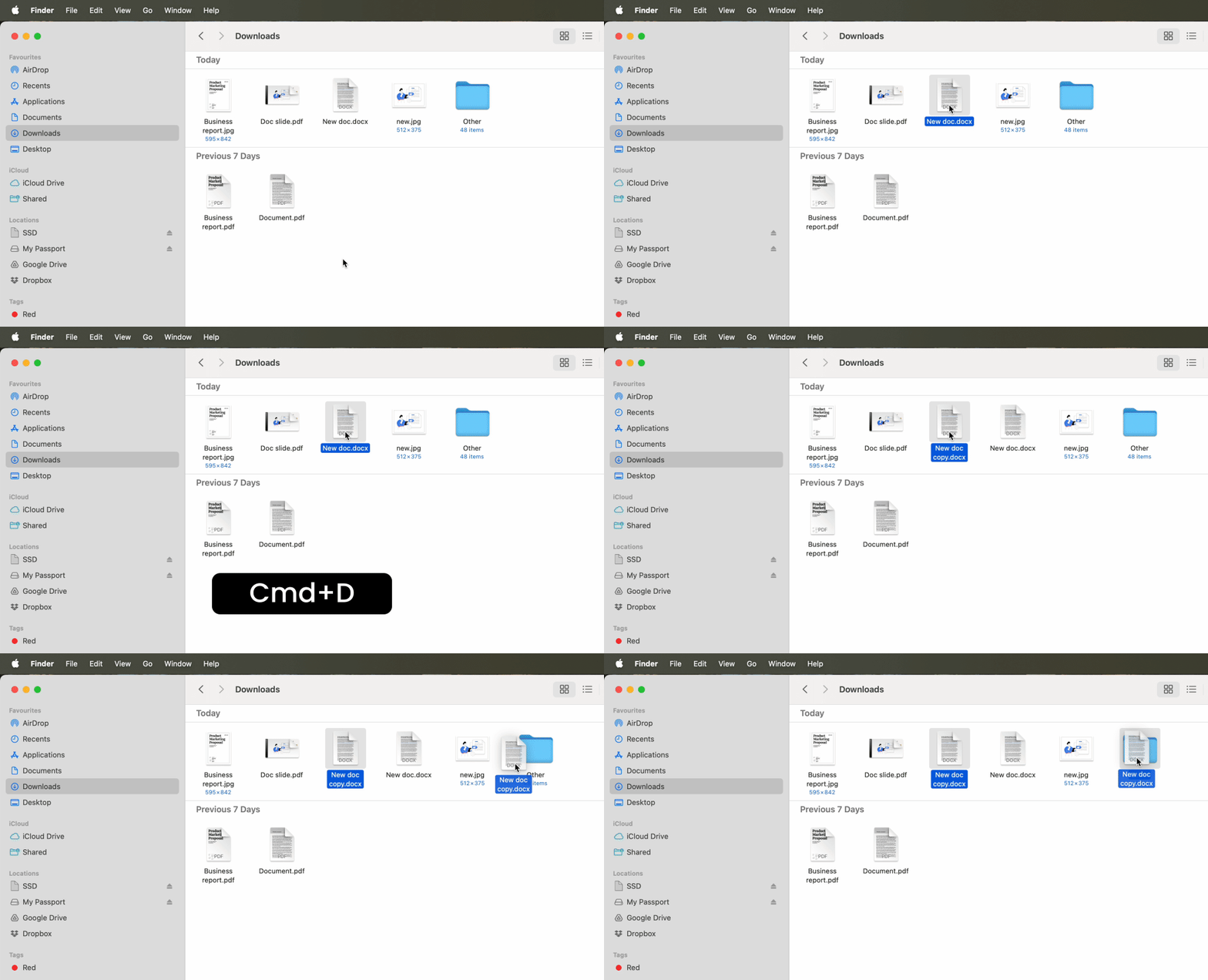
Yes — use File Explorer on Windows or Finder on Mac to copy the file at the folder level before launching Microsoft Word. This method prevents AutoSave from ever activating and creates a true independent duplicate with zero risk of overwriting your original.
What's the difference between "Save As" and "Save a Copy"?
"Save As" traditionally closed the original file and opened the copy for editing, but this option often disappears in Microsoft 365 for cloud-stored documents. "Save a Copy" creates a duplicate in the background while keeping the original file open, preventing AutoSave sync conflicts. Always use "Save a Copy" when working with OneDrive or SharePoint files.
How do I make a copy of a read-only Word document?
- Open the document.
- Click the Edit Document or Enable Editing button that appears in the yellow banner at the top of the window.
- Immediately use File → Save a Copy with a new name to your personal OneDrive or local folder.
This creates an editable duplicate without modifying the protected original.
Yes — all formatting, styles, images, embedded objects, headers, footers, and page layout settings copy exactly when you duplicate a document through any of these methods. The new file is identical to the original at the moment of duplication.

 Published Jun 16, 2026
  13 min read
  70 views