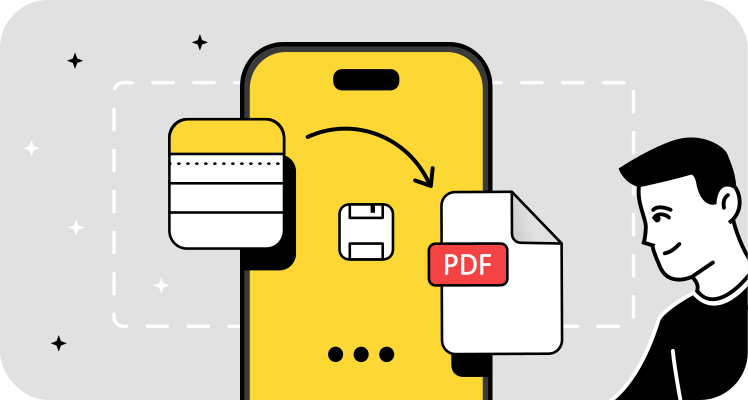
Your iPhone already has everything needed to save a note as a PDF. No downloads, no subscriptions. Whether you're sharing meeting notes with colleagues, submitting documentation, or archiving important information, iOS gives you three native pathways. Most users never discover the fastest method because Apple hides it inside the Print menu. Once you know the two-finger gesture that unlocks instant PDF creation, the entire process takes seconds.
The "hidden" print trick (the fastest way)
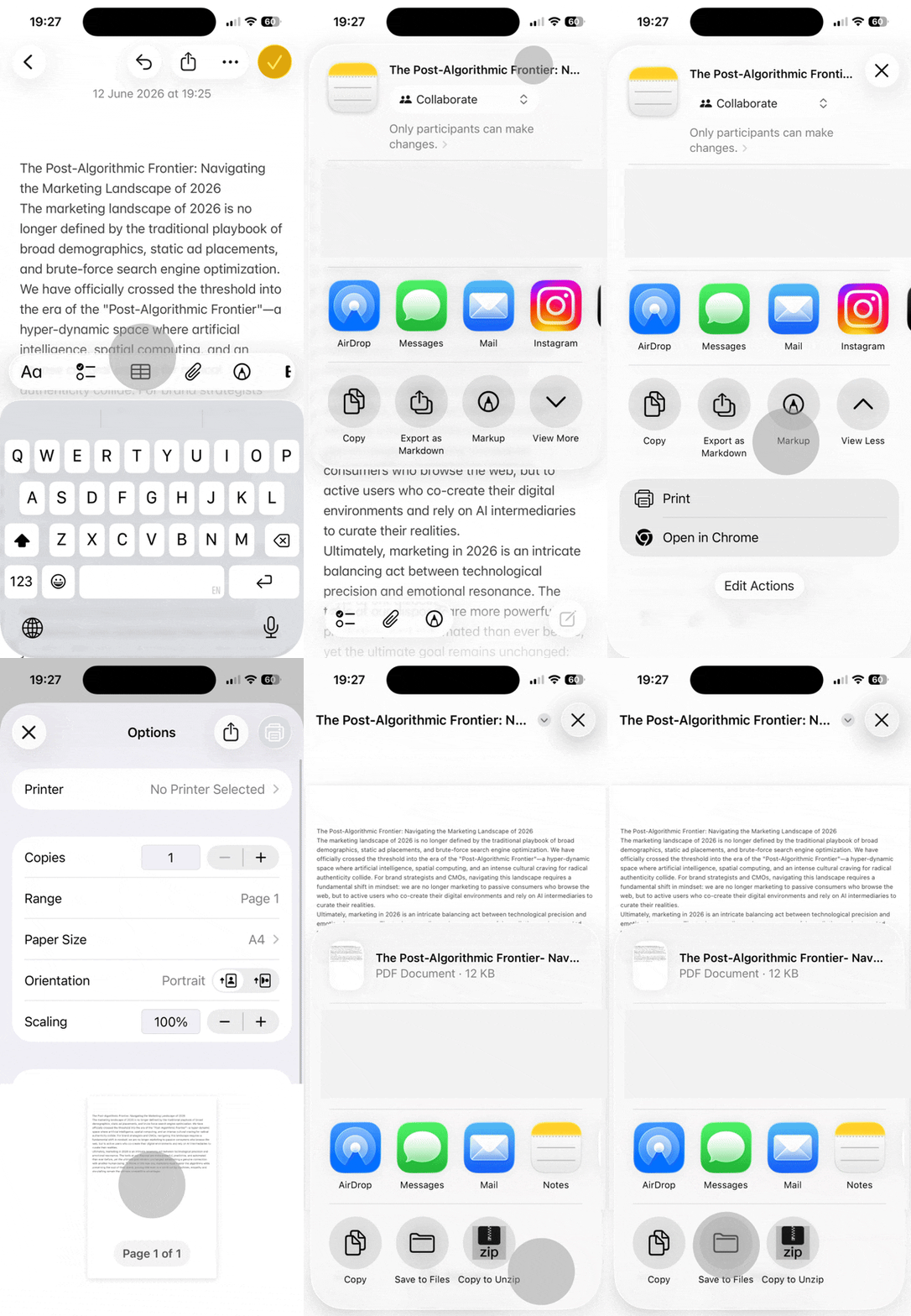
The Print Preview method works universally across all iOS versions and remains the quickest route from note to PDF. Apple designed the Print Preview screen as a gateway to PDF generation, but the critical gesture that completes the conversion goes undocumented in most guides. This method works whether you have a printer configured or not, and it preserves text formatting and embedded images.
Step-by-step: From share sheet to PDF
- Open the note you want to convert in the Notes app
- Tap the share icon (the square with an upward arrow) in the top right corner
- Scroll through the Share Sheet options
- Select Print from the list
- Tap Select Printer or anywhere on the preview thumbnail (no actual printer needed)
- The Print Preview screen displays your note formatted as a document
At this stage, you're looking at a preview, not yet a PDF file. The transformation happens through a gesture Apple never explicitly teaches.
The pinch to PDF secret
On the Print Preview screen, place two fingers on the preview thumbnail and pinch outward (the same zoom gesture you use for photos). This instantly converts the preview into a full-screen PDF. The interface shifts—you're no longer in Print Preview but viewing an actual PDF document.
- Pinch outward on the preview thumbnail with two fingers
- The view expands into full PDF mode
- Tap the share icon in the top right corner
- Save to the Files app, send via email, or use AirDrop to transfer the document to your Mac
This pinch gesture separates a five-second process from a multi-step workflow. Most users never discover it because the Print Preview screen offers no visible button or instruction pointing to this functionality when you save an iPhone note as a PDF.
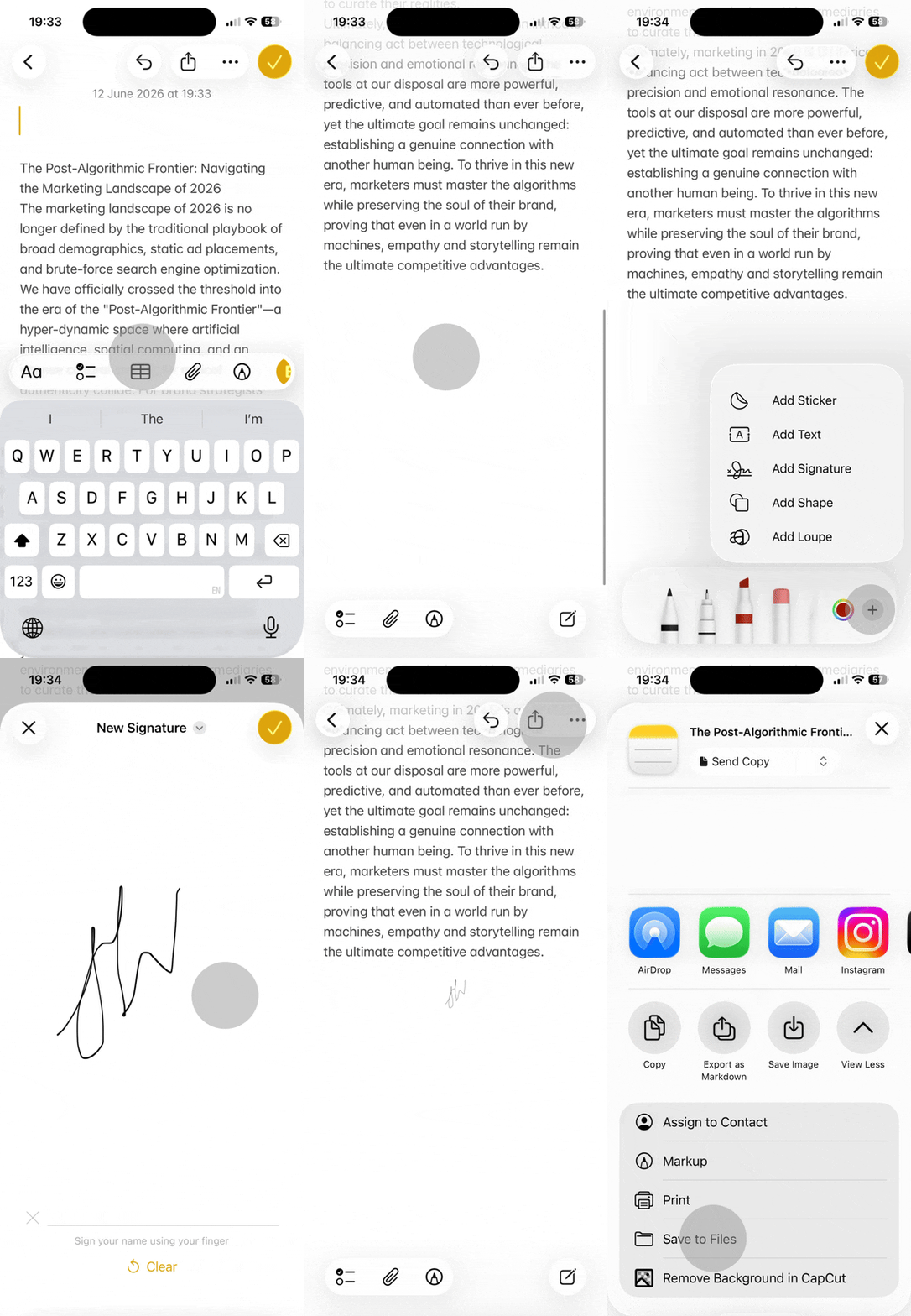
Method 2: Using the markup tool (best for annotations)
When you need to draw on a note, add a signature, or highlight text before saving, the Markup tool creates a PDF while giving you annotation capabilities. This method automatically generates a PDF file the moment you enter Markup mode, so any changes you make are embedded in the final document.
Selecting "markup"
- Open your note and tap the share icon
- Select Markup (the pencil icon visible in the Share Sheet)
- The note converts to PDF format immediately
- Use the drawing tools to add handwritten notes, shapes, or signatures
- Select the text tool to insert typed annotations
- Tap Done in the top left corner when finished
- Tap the share icon again to save the annotated PDF to Files or send it
The advantage is embedded annotations—unlike adding notes in the regular Notes app, Markup changes become permanent parts of the PDF file. Anyone who opens the document sees your additions exactly as you created them, regardless of what device or app they use.
Method 3: The "export to files" workflow
For users who organize documents in the Files app or rely on iCloud Drive for cross-device access, this method saves directly to your chosen folder. iOS automatically suggests PDF as the export format, and the file syncs across all devices signed into your Apple ID when you make a PDF on iPhone Notes.
- Open the note and tap the share icon
- Scroll through the Share Sheet and select Save to Files
- iOS displays the save dialog with PDF format pre-selected
- Choose your destination folder (iCloud Drive, On My iPhone, or other connected services)
- Tap Save in the top right corner
The PDF appears in your Files app within seconds. If you saved to iCloud Drive, the document syncs automatically to your Mac, iPad, or any device logged into iCloud. This method creates the smoothest path to desktop access because the file lives in the Files app ecosystem from the start—no need for manual transfers or email attachments.
Troubleshooting: Why does my note look messy?
Formatting issues emerge when notes contain complex elements that don't translate cleanly to PDF. Common problems include missing embedded images, tables that wrap incorrectly, or attachments that fail to appear in the exported PDF. These failures typically occur with notes created across multiple devices, notes containing large image files, or those with mixed formatting styles.
Before exporting, simplify your note by removing tables, reducing image file sizes, or breaking complex layouts into separate notes. If an image won't export, try saving it separately and inserting it into a fresh note. For multi-page notes with varied formatting, consider exporting sections individually. The Print Preview method generally handles formatting most faithfully, while Markup can sometimes compress images or alter spacing.
The "mobile-to-desktop" hand-off strategy
Most people save an iPhone note as a PDF because they need the document on a computer for professional editing, merging with other files, or formal distribution. This zero-friction workflow connects mobile creation to desktop productivity.
Save your note as a PDF using the Print Trick method (fastest), then choose your transfer approach based on available tools. AirDrop delivers instant transfer to Mac with no internet required—just open the Share Sheet on your PDF, select AirDrop, and choose your Mac from the list. The file appears in your Mac's Downloads folder within seconds.
For Windows users or when working across different networks, email the PDF to yourself or save it to iCloud Drive using the Files export method. The Files app advantage means automatic sync; save the PDF once on your iPhone and access it from any device without manual transfers.
Once the document reaches your desktop, you can merge it with other PDFs, compress large files, or convert formats using browser-based editing tools. This mobile-to-desktop continuity transforms your iPhone from a quick note-capture device into the starting point for complete document workflows. The native iOS methods handle creation; desktop tools handle refinement and distribution.
```