Method 2: The "PDF power hack" (best for bulk & high quality)
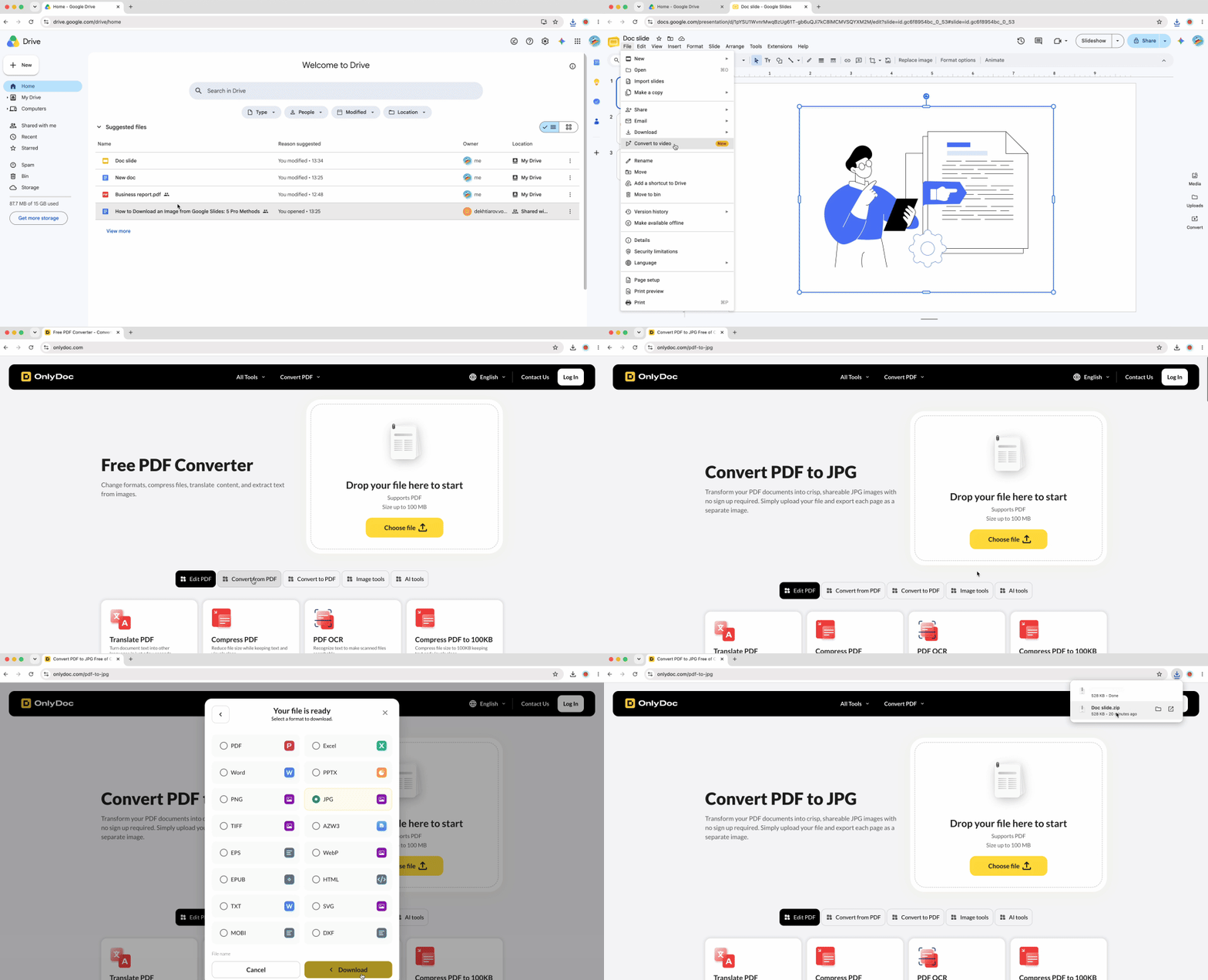
This is the professional's secret. Before diving into the workflow, understand a critical distinction: downloading a slide as PNG saves the entire slide composition (background, text, images combined), not the individual image file. You need a different approach when you want to export images from Google Slides.
The pro workflow:
- In Google Slides, click File → Download → PDF Document (.pdf)
- Save the PDF file to your computer
- Open the OnlyDoc PDF to JPG converter
- Upload your downloaded PDF to the tool
- The converter extracts all images from every slide in the presentation
- Download individual images or grab all at once
Why this method wins for quality:
This workflow preserves original image resolution without screenshot compression. When you export a presentation to PDF, Google Slides embeds images at their original uploaded resolution rather than resampling them. The converter then extracts those pristine files directly from the PDF container.
The unique advantage most guides miss: Google Slides frequently masks or crops images to fit slide layouts. When you screenshot or use "Save to Keep," you only capture the visible portion. The PDF extraction method often recovers the full uncropped image file because the complete original asset remains embedded in the PDF. Designers and power users rely on this technique when they need the entire source file, not just the cropped version visible on the slide.
This approach also handles bulk operations efficiently. Extract all images from a 50-slide deck in one workflow rather than repeating manual steps dozens of times. The method works even when you don't own the presentation, as long as you have view access to download it as PDF.
Method 3: Using "publish to web" for high-res access
This slightly more technical method proves highly effective when you own the presentation or have edit access. Publishing creates a public web view where browsers recognize images as standard web elements.
- In Google Slides, click File → Share → Publish to web
- In the dialog box that appears, click the "Publish" button
- Copy the generated public link
- Open that link in a new browser tab
- Navigate to the slide containing your target image
- Right-click the image and select "Save Image As..."
The published web view renders images differently than the editing interface, allowing your browser's native save functionality to work. This method often provides better resolution than "Save to Keep" because it bypasses Google Keep's compression.
Privacy consideration: Remember to unpublish the presentation when finished if it contains sensitive content. Return to File → Share → Publish to web and click "Stop publishing." The method requires owner or editor permissions, so it won't work on view-only decks where you lack publishing rights.
Method 4: Downloading a single slide as a high-res PNG
This method exports the entire slide (background, text, and images together) as one graphic file rather than isolating individual images. Use this approach when creating slide thumbnails, social media graphics, or any situation requiring the full slide composition.
- First, optimize for quality: File → Page Setup → Custom
- Set dimensions to high resolution such as 1920 × 1080 or larger
- Click "Apply"
- Navigate to the specific slide you want to export
- File → Download → PNG image (.png)
- Only the current slide downloads as a PNG file
Quality matters here: Higher page setup dimensions produce sharper exports. The default Google Slides dimensions (960 × 540 effective pixels) create noticeably blurry images when viewed at full size. Setting custom dimensions before export ensures professional-quality output.
This method has a clear limitation—it exports the slide layout as a composite image, not isolated image files. You must repeat the process for each slide individually, making it inefficient for bulk needs.
Choose your method: Quick comparison
Not sure which technique fits your specific situation to save images from Google Slides? Use this decision framework to match your goal with the best approach.
| Your Goal | Best Method | Quality Level |
|---|
| One quick image | Save to Keep (Method 1) | Good |
| All images at once | PDF + converter (Method 2) | Excellent |
| Full uncropped originals | PDF + converter (Method 2) | Excellent |
| Entire slide as graphic | Download as PNG (Method 4) | Excellent (with proper setup) |
| View-only deck images | Publish to Web (Method 3) | Very Good |
Each method serves distinct purposes. Quick social media shares tolerate the minor quality loss from "Save to Keep." Professional design work demands the PDF extraction workflow that preserves every pixel and recovers hidden image data. Match the technique to your quality requirements and time constraints for how to download an image from Google Slides.
The PDF conversion approach stands out as the most versatile solution. It handles both single-image and bulk extraction needs while maintaining the highest quality standards. When you need pristine assets from any presentation, that workflow delivers consistent results regardless of how images were cropped or positioned on slides. For professional workflows requiring access to presentations in multiple formats, OnlyDoc offers a suite of conversion tools designed for quality and efficiency.

 Published Jun 16, 2026
  7 min read
  55 views